This article was originally published at ARO with Nvidia GPU Workloads | Red Hat Cloud Experts
ARO guide to running Nvidia GPU workloads.
Prerequisites
- oc cli
- Helm
- jq, moreutils, and gettext package
- An ARO 4.14 cluster
Note: If you need to install an ARO cluster, please read our ARO Terraform Install Guide. Please be sure if you’re installing or using an existing ARO cluster that it is 4.14.x or higher.
Note: Please ensure your ARO cluster was created with a valid pull secret (to verify make sure you can see the Operator Hub in the cluster’s console). If not, you can follow these instructions.
Linux:
sudo dnf install jq moreutils gettext
MacOS:
brew install jq moreutils gettext helm openshift-cli
Helm Prerequisites
If you plan to use Helm to deploy the GPU operator, you will need do the following:
- Add the MOBB chart repository to your Helm
helm repo add mobb https://rh-mobb.github.io/helm-charts/
- Update your repositories
helm repo update
GPU Quota
All GPU quotas in Azure are 0 by default. You will need to login to the azure portal and request GPU quota. There is a lot of competition for GPU workers, so you may have to provision an ARO cluster in a region where you can actually reserve GPU.
ARO supports the following GPU workers:
- NC4as T4 v3
- NC6s v3
- NC8as T4 v3
- NC12s v3
- NC16as T4 v3
- NC24s v3
- NC24rs v3
- NC64as T4 v3
Please remember that when you request quota that Azure is per core. To request a single NC4as T4 v3 node, you will need to request quota in groups of 4. If you wish to request an NC16as T4 v3 you will need to request quota of 16.
- Login to Azure
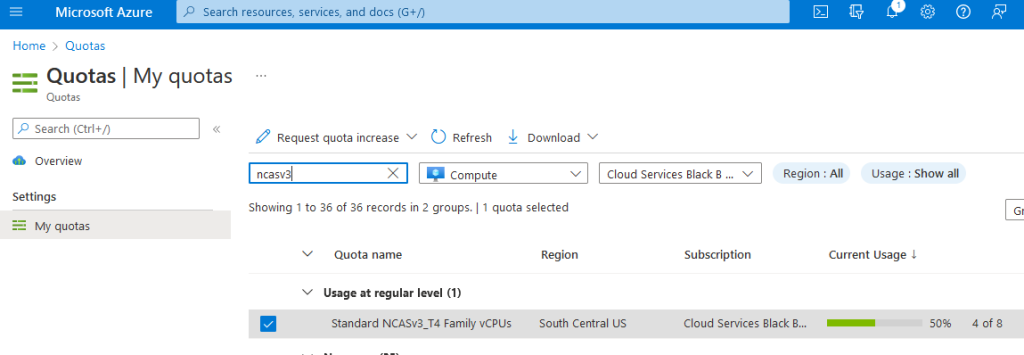
Login to portal.azure.com, type “quotas” in search by, click on Compute and in the search box type “NCAsv3_T4”. Select the region your cluster is in (select checkbox) and then click Request quota increase and ask for quota (I chose 8 so I can build two demo clusters of NC4as T4s). The Helm chart we use below will request a single Standard_NC4as_T4_v3 machine.
- Configure quota
Log in to your ARO cluster
- Login to OpenShift – we’ll use the kubeadmin account here but you can login with your user account as long as you have cluster-admin.
oc login <apiserver> -u kubeadmin -p <kubeadminpass>
GPU Machine Set
ARO still uses Kubernetes Machinsets to create a machine set. I’m going to export the first machine set in my cluster (az 1) and use that as a template to build a single GPU machine in southcentralus region 1.
You can create the machine set the easy way using Helm, or Manually. We recommend using the Helm chart method.
Option 1 – Helm
- Create a new machine-set (replicas of 1), see the Chart’s values file for configuration options
helm upgrade --install -n openshift-machine-api \
    gpu mobb/aro-gpu
- Switch to the proper namespace (project):
oc project openshift-machine-api
- Wait for the new GPU nodes to be available
watch oc -n openshift-machine-api get machines
- Skip past Option 2 – Manually to Install Nvidia GPU Operator
Option 2 – Manually
- View existing machine sets
MACHINESET=$(oc get machineset -n openshift-machine-api -o=jsonpath='{.items[0]}' | jq -r '[.metadata.name] | @tsv')
- Save a copy of example machine set
oc get machineset -n openshift-machine-api $MACHINESET -o json > gpu_machineset.json
- Change the .metadata.name field to a new unique name
jq '.metadata.name = "nvidia-worker-southcentralus1"' gpu_machineset.json| sponge gpu_machineset.json
- Ensure spec.replicas matches the desired replica count
jq '.spec.replicas = 1' gpu_machineset.json| sponge gpu_machineset.json
- Change the matchLabels field
jq '.spec.selector.matchLabels."machine.openshift.io/cluster-api-machineset" = "nvidia-worker-southcentralus1"' gpu_machineset.json| sponge gpu_machineset.json
- Change the template metadata labels
jq '.spec.template.metadata.labels."machine.openshift.io/cluster-api-machineset" = "nvidia-worker-southcentralus1"' gpu_machineset.json| sponge gpu_machineset.json
- Change the vmSize to the desired GPU instance type
jq '.spec.template.spec.providerSpec.value.vmSize = "Standard_NC4as_T4_v3"' gpu_machineset.json | sponge gpu_machineset.json
- Change the zone
jq '.spec.template.spec.providerSpec.value.zone = "1"' gpu_machineset.json | sponge gpu_machineset.json
- Delete the .status section
jq 'del(.status)' gpu_machineset.json | sponge gpu_machineset.json
- Verify the other data in the yaml file.
Create GPU machine set
- Create GPU Machine set
oc create -f gpu_machineset.json
- Verify GPU machine set
oc get machineset -n openshift-machine-api
oc get machine -n openshift-machine-api
Once the machines are provisioned (5-15 minutes), they will show as nodes:
oc get nodes
Install Nvidia GPU Operator
This will create the nvidia-gpu-operator namespace, set up the operator group and install the Nvidia GPU Operator.
Option 1 – Helm
- Create namespaces
oc create namespace openshift-nfd
oc create namespace nvidia-gpu-operator
- Use the
mobb/operatorhubchart to deploy the needed operators
helm upgrade -n nvidia-gpu-operator nvidia-gpu-operator \
  mobb/operatorhub --install \
  --values https://raw.githubusercontent.com/rh-mobb/helm-charts/main/charts/nvidia-gpu/files/operatorhub.yaml
- Wait until the two operators are running
oc wait --for=jsonpath='{.status.replicas}'=1 deployment \
  nfd-controller-manager -n openshift-nfd --timeout=600s
oc wait --for=jsonpath='{.status.replicas}'=1 deployment \
  gpu-operator -n nvidia-gpu-operator --timeout=600s
- Install the Nvidia GPU Operator chart
helm upgrade --install -n nvidia-gpu-operator nvidia-gpu \
  mobb/nvidia-gpu --disable-openapi-validation
- Skip past Option 2 – Manually to Validate GPU
Option 2 – Manually
- Create Nvidia namespace
cat <<EOF | oc apply -f -
apiVersion: v1
kind: Namespace
metadata:
  name: nvidia-gpu-operator
EOF
- Create Operator Group
cat <<EOF | oc apply -f -
apiVersion: operators.coreos.com/v1
kind: OperatorGroup
metadata:
  name: nvidia-gpu-operator-group
  namespace: nvidia-gpu-operator
spec:
  targetNamespaces:
  - nvidia-gpu-operator
EOF
- Get latest nvidia channel
CHANNEL=$(oc get packagemanifest gpu-operator-certified -n openshift-marketplace -o jsonpath='{.status.defaultChannel}')
- Get latest nvidia package
PACKAGE=$(oc get packagemanifests/gpu-operator-certified -n openshift-marketplace -ojson | jq -r '.status.channels[] | select(.name == "'$CHANNEL'") | .currentCSV')
- Create Subscription
envsubst  <<EOF | oc apply -f -
apiVersion: operators.coreos.com/v1alpha1
kind: Subscription
metadata:
  name: gpu-operator-certified
  namespace: nvidia-gpu-operator
spec:
  channel: "$CHANNEL"
  installPlanApproval: Automatic
  name: gpu-operator-certified
  source: certified-operators
  sourceNamespace: openshift-marketplace
  startingCSV: "$PACKAGE"
EOF
- Wait for Operator to finish installing
Install Node Feature Discovery Operator
- Set up Namespace
cat <<EOF | oc apply -f -
apiVersion: v1
kind: Namespace
metadata:
  name: openshift-nfd
EOF
- Create OperatorGroup
cat <<EOF | oc apply -f -
apiVersion: operators.coreos.com/v1
kind: OperatorGroup
metadata:
  generateName: openshift-nfd-
  name: openshift-nfd
  namespace: openshift-nfd
EOF
- Create Subscription
cat <<EOF | oc apply -f -
apiVersion: operators.coreos.com/v1alpha1
kind: Subscription
metadata:
  name: nfd
  namespace: openshift-nfd
spec:
  channel: "stable"
  installPlanApproval: Automatic
  name: nfd
  source: redhat-operators
  sourceNamespace: openshift-marketplace
EOF
Wait for Node Feature discovery to complete installation
Create NFD Instance
cat <<EOF | oc apply -f -
kind: NodeFeatureDiscovery
apiVersion: nfd.openshift.io/v1
metadata:
  name: nfd-instance
  namespace: openshift-nfd
spec:
  customConfig:
    configData: {}
  operand:
    image: >-
      registry.redhat.io/openshift4/ose-node-feature-discovery@sha256:07658ef3df4b264b02396e67af813a52ba416b47ab6e1d2d08025a350ccd2b7b
    servicePort: 12000
  workerConfig:
    configData: |
      core:
        sleepInterval: 60s
      sources:
        pci:
          deviceClassWhitelist:
            - "0200"
            - "03"
            - "12"
          deviceLabelFields:
            - "vendor"
EOF
Apply nVidia Cluster Config
- Apply cluster config
cat <<EOF | oc apply -f -
apiVersion: nvidia.com/v1
kind: ClusterPolicy
metadata:
  name: gpu-cluster-policy
spec:
  migManager:
    enabled: true
  operator:
    defaultRuntime: crio
    initContainer: {}
    runtimeClass: nvidia
    deployGFD: true
  dcgm:
    enabled: true
  gfd: {}
  dcgmExporter:
    config:
      name: ''
  driver:
    licensingConfig:
      nlsEnabled: false
      configMapName: ''
    certConfig:
      name: ''
    kernelModuleConfig:
      name: ''
    repoConfig:
      configMapName: ''
    virtualTopology:
      config: ''
    enabled: true
    use_ocp_driver_toolkit: true
  devicePlugin: {}
  mig:
    strategy: single
  validator:
    plugin:
      env:
        - name: WITH_WORKLOAD
          value: 'true'
  nodeStatusExporter:
    enabled: true
  daemonsets: {}
  toolkit:
    enabled: true
EOF
Validate GPU
- Verify NFD can see your GPU(s)
oc describe node | egrep 'Roles|pci-10de' | grep -v master
You should see output like:
Roles:              worker
                feature.node.kubernetes.io/pci-10de.present=true
- Verify node labels
oc get node -l nvidia.com/gpu.present
- Wait until Cluster Policy is ready
oc wait --for=jsonpath='{.status.state}'=ready clusterpolicy \
  gpu-cluster-policy -n nvidia-gpu-operator --timeout=600s
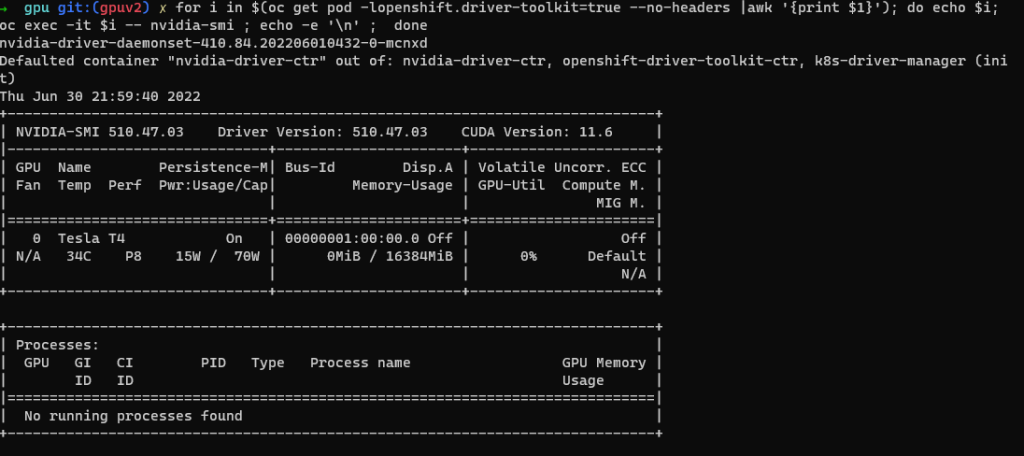
- Nvidia SMI tool verification
oc project nvidia-gpu-operator
for i in $(oc get pod -lopenshift.driver-toolkit=true --no-headers |awk '{print $1}'); do echo $i; oc exec -it $i -- nvidia-smi ; echo -e '\n' ;  done
- Create Pod to run a GPU workload
oc project nvidia-gpu-operator
cat <<EOF | oc apply -f -
apiVersion: v1
kind: Pod
metadata:
  name: cuda-vector-add
spec:
  restartPolicy: OnFailure
  containers:
    - name: cuda-vector-add
      image: "quay.io/giantswarm/nvidia-gpu-demo:latest"
      resources:
        limits:
          nvidia.com/gpu: 1
      nodeSelector:
        nvidia.com/gpu.present: true
EOF
- View logs
oc logs cuda-vector-add --tail=-1
You should see Output like the following:
[Vector addition of 5000 elements]
Copy input data from the host memory to the CUDA device
CUDA kernel launch with 196 blocks of 256 threads
Copy output data from the CUDA device to the host memory
Test PASSED
Done
- If successful, the pod can be deleted
oc delete pod cuda-vector-add